


Is Your Mac Running Slow Troubleshooting Tips from iStore Dubai
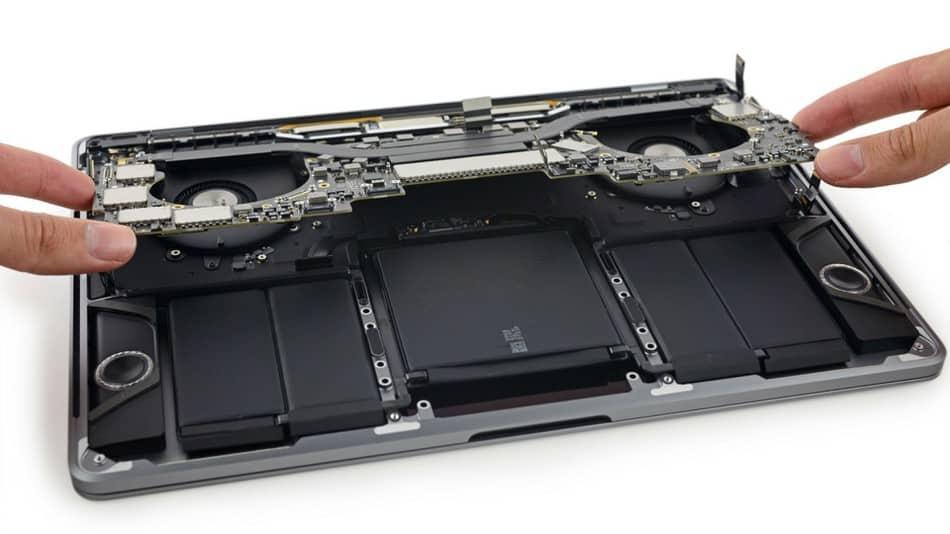
Your Mac is supposed to be fast and reliable. When it starts running slowly, it disrupts your productivity and frustrates you. A slow Mac makes simple tasks take forever. Opening applications feels sluggish, switching between programs lags, and saving files seems to take an eternity. Before you assume your Mac is broken and needs expensive repair, there are many troubleshooting steps you can try. Many slow Mac problems can be fixed without professional help. This guide will walk you through troubleshooting steps that often solve performance problems.
Understanding Why Your Mac Runs Slowly
Before you fix the problem, it helps to understand why your Mac is running slowly. Performance problems have different causes, and understanding the cause helps you find the right solution.
Your Mac uses its hard drive to store files and to temporarily store information while applications are running. If your hard drive is almost full, your Mac cannot work efficiently. When storage space is limited, your Mac runs slowly.
Your Mac's memory, also called RAM, stores information from programs you are currently using. If your Mac does not have enough RAM, or if RAM is being used inefficiently, your Mac slows down. You might have applications running in the background using RAM without your knowledge.
Your Mac's processor is the brain of your computer. If you are running demanding applications or too many applications at once, your processor gets overwhelmed and your Mac slows down.
Background processes and services might be running unnecessarily. Some applications launch automatically when you start your Mac and run in the background. These use resources and slow down your Mac.
Your hard drive might be fragmented or corrupted. Over time, files on your hard drive become scattered and disorganized. This makes it take longer for your Mac to find and load files.
Malware or viruses might be running on your Mac. While Macs are generally more secure than some computers, they are not immune to malware. Malware uses your Mac's resources and slows it down.
Outdated software can also cause performance problems. If your operating system or applications are outdated, they might not work efficiently.
Checking Your Storage Space
One of the most common reasons for slow Mac performance is insufficient storage space. Checking and freeing up storage is often the first troubleshooting step.
Click the Apple menu and select About This Mac. Click the Storage tab to see how much space you are using. If your storage bar shows mostly red or orange, your hard drive is almost full.
Aim to keep at least ten to fifteen percent of your hard drive free. If you are using more than eighty five percent of your storage, this is definitely slowing down your Mac.
Delete files you no longer need. Look for duplicate files, old downloads, and temporary files that are taking up space.
Delete old applications you do not use anymore. Applications take up significant space. If you have not used an application in months, uninstall it.
Empty your trash. Deleted files go to trash but still take up space. Permanently delete them by emptying the trash.
Move files to external hard drives or cloud storage. Instead of keeping everything on your Mac, back up files to external storage. This frees up space on your Mac while keeping your files safe.
Use cloud storage services like iCloud, Google Drive, or Dropbox for documents. These services store files on the cloud instead of on your Mac, freeing up local storage.
Clean up your Downloads folder. Files you download accumulate in your Downloads folder over time. Delete downloads you no longer need.
Checking Your Memory Usage
If your storage is not full, your Mac might be running out of memory. Checking memory usage helps you identify memory problems.
Open Activity Monitor by going to Applications, then Utilities, then Activity Monitor. Click the Memory tab. You can see how much memory different applications are using.
Look for applications using excessive memory. If an application shows red or orange memory usage, it is using a lot of memory and might be slowing down your Mac.
Close applications using excessive memory. If you are not actively using an application, close it to free up memory.
Look for applications running in the background that you are not using. Close any background applications you do not need.
Restart your Mac. Restarting clears memory and resets all running processes. This often significantly improves performance.
Managing Startup Applications
When you start your Mac, many applications launch automatically. Some of these might be unnecessary, using resources and slowing down your startup and overall performance.
Go to System Settings, then General, then Login Items. You can see which applications are set to launch automatically.
Review the list and remove applications that you do not need to launch automatically. Keep only the applications you actually need running all the time.
Go to System Settings, then General, then Allow in the Background. Some applications request permission to run in the background. Review these and disable background activity for applications you do not need running constantly.
Disabling unnecessary startup applications can significantly speed up your Mac startup time and overall performance.
Checking for Malware and Security Issues
Malware and viruses can significantly slow down your Mac. Checking for and removing malware is important.
Use built in Mac security tools. Go to System Settings, then Privacy and Security. Check that your Mac has Gatekeeper and XProtect enabled. These built in tools provide basic malware protection.
Consider using third party security software. While built in tools provide basic protection, more comprehensive security software might be needed if you suspect malware.
Be careful about what you download and install. Only download applications from reputable sources like the Mac App Store. Avoid downloading applications from suspicious websites.
Be cautious about email attachments. Do not open attachments from senders you do not trust.
Keep your operating system and applications updated. Updates often include security patches that protect against malware.
If you suspect your Mac has malware, bring it to a professional for scanning and removal. Professional technicians have specialized tools to detect and remove malware.
Updating Your Operating System and Applications
Outdated software can cause performance problems. Keeping your software updated helps maintain good performance.
Click the Apple menu and select System Settings. Click General, then Software Update. If updates are available, install them.
Update your applications as well. Go to the App Store and check the Updates tab. If application updates are available, install them.
Software updates often include performance improvements and bug fixes. Staying current with updates keeps your Mac running well.
However, be cautious about updating immediately when new versions are released. Sometimes new updates have bugs or compatibility issues. Wait a week or two before updating to make sure the new version is stable.
Optimizing Your Mac Settings
Your Mac settings can be adjusted to improve performance.
Disable visual effects that you do not need. Go to System Settings, then Accessibility, then Display. You can disable animations and reduce transparency.
Disable Dashboard if you do not use it. Dashboard widgets use system resources. If you do not use Dashboard, disable it.
Close browser tabs you are not using. If you have dozens of browser tabs open, this uses memory. Close tabs you are not actively using.
Restart your Mac regularly. Regular restarts clear temporary files and reset system processes. Restart your Mac at least once a week.
Clear your browser cache and cookies. These accumulate over time and can slow down browsing. Clear them periodically.
Checking Hard Drive Health
Your hard drive might be failing or having problems. Checking hard drive health is important.
Go to Applications, then Utilities, then Disk Utility. Click on your hard drive and click the Info button. Check the hard drive health status.
If your hard drive health shows issues, this might be the problem. A failing hard drive will make your Mac run slowly and eventually stop working.
Back up your data immediately if your hard drive is showing problems. If your hard drive fails, you could lose all your data.
If your hard drive is failing, you need professional hard drive replacement. Bring your Mac to a professional for hard drive replacement and data transfer.
Professional Help for Slow Mac Performance
If none of these troubleshooting steps improve your Mac performance, you might need professional help.
Bring your Mac to a professional technician for diagnosis. Professional technicians can run comprehensive diagnostics to identify exactly what is causing the slow performance.
A technician might identify hardware problems like a failing hard drive, memory problems, or processor issues that need professional repair.
A technician might recommend hardware upgrades like adding more RAM or replacing your hard drive with a faster solid state drive.
Professional cleaning inside your Mac might be needed. Dust buildup inside your Mac can cause overheating and performance problems. Professional cleaning removes dust and improves cooling.
Conclusion
A slow Mac is frustrating, but there are many troubleshooting steps you can try before assuming your Mac is broken. Check your storage space, restart your Mac, manage startup applications, and keep your software updated. These steps solve many performance problems. If your Mac is still running slowly after these troubleshooting steps, professional help might be needed.
At iStore Dubai, our expert technicians can diagnose slow Mac performance and provide solutions. We can upgrade your hardware, clean your Mac, repair components, or provide software optimization. Contact iStore Dubai today if your Mac is running slowly and we cannot identify the problem yourself. Our technicians will help get your Mac running at peak performance again.
 Spanish
 English
 Arabic
 French
 Portuguese
 Deutsch
 Turkish
 Dutch
Dutch
 Italiano
 Russian
 Romaian
 Portuguese (Brazil)
 Greek
Greek